If you’ve read any of my neighborhood guide, you know I often relate building a website to building a house. Wire frames, words and photos are part of the blueprints, and blueprints get agreed on before anyone picks up a hammer. Change the plans after the walls are up and we’re tearing out drywall to move a window. It can be done, but it takes longer and costs more. Once you’ve moved in, though, there’s always room for a fresh coat of paint, or maybe an addition.
Getting your site just right will take a little back-and-forth. Here’s how to make that part quick and painless for both of us.
Start with final copy
My contract asks for your final text and photos before I start building. There’s a good reason for that. If I build around placeholder text and then the real words show up, I’m basically building the page twice. That takes longer, and it usually costs you more.
“Final” means proofread and signed off by everyone who gets a say. If your business partner or board or mother wants a look, get their okay first.
Not much of a writer? That’s okay. Here are a couple of easy ways in:
- Talk it out on video. Loom is free. For new content, hit record and talk about your business like you would to a new customer. Loom can type up a transcript for you, or you can run it though your favorite AI Assistant. For content updates and feedback, record comments for one page or issue at a time.
- Get a hand from AI. Cursor, ChatGPT or Claude can tidy your notes or a transcript into page text to email me. Read it over, though. It should still sound like you, and the facts need to be right.
Send whole blocks of text, not small edits
Of course, there’ll always be little changes and updates along the way. That’s normal! Here’s the easiest way to send them.
Skip the “change ‘great’ to ‘wonderful’ in the third sentence of the second paragraph” notes. Instead, copy the whole section from the page, fix it up in a Word doc, Google Doc, or email, and send me the whole thing.
Hunting for one word at a time is slow, and it’s easy for things to slip through. A full block I can paste in is quick, and nothing gets missed.
Let me know where each block goes, too. Copy the page’s web address from your browser’s address bar and tell me which part of the page, like “yoursite.com/about, second section.” No guessing that way.
One more thing: think about words and looks separately. Word changes go page by page. Design changes usually apply everywhere, so just tell me once, like “line up the logo on the left everywhere” or “make all the headings the handwriting font, in all caps.” I’ll change it across the whole site in one go, and you won’t have to point it out on every page. In house terms, it’s the difference between rearranging one room and painting the whole house.
Take screenshots
A screenshot shows me exactly what you’re looking at. Here’s how:
- Windows: Press Windows + Shift + S, then drag around the area you want.
- Mac: Press Command + Shift + 4, then drag around the area you want.
- Phone: Usually the power button and volume up button pressed together.
Go ahead and scribble arrows or circles on it. It helps!
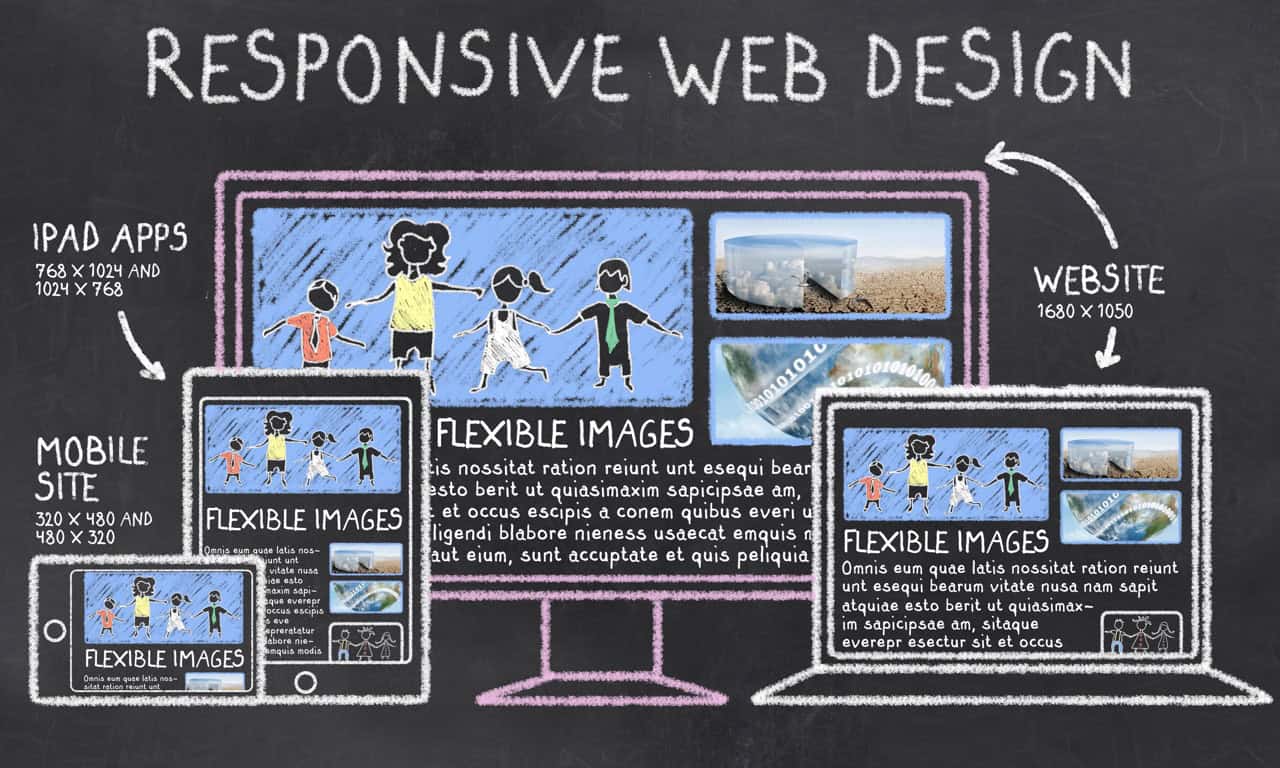
Your site shifts around to fit whatever screen it’s on, so it can look different on a phone, a tablet, and a computer. (That’s called responsive design, and it’s supposed to happen.) If something looks off, tell me what you were on, like “iPhone, Safari” or “laptop, Chrome.” Then grab the whole screen, not just the trouble spot. Seeing the full width helps me see what you see and track down the changes.
Looks wrong on your phone but fine on your laptop? Tell me that too. It narrows things down fast.
Full-page screenshots
A full-page screenshot grabs the whole page, top to bottom, not just what fits on your screen. It’s the best way for me to see what the page looks like on your device.
- iPhone (Safari): Take a screenshot, tap the preview in the corner, then tap Full Page at the top. Tap Done and save it as a PDF to Files.
- Android (Chrome): Take a screenshot, then tap Capture more (or the scroll capture arrow on Samsung) and drag to include the whole page.
- Firefox: Right-click the page, choose Take Screenshot, then Save full page.
- Edge: Press Ctrl + Shift + S, then choose Capture full page.
- Chrome on a computer: There’s no easy built-in way. The free GoFullPage extension does it in one click.
Use image file names
Want a photo swapped? Give me its file name, not a description. “Swap barn-sunset.jpg for barn-spring.jpg” is way clearer than “replace the barn picture with the newer one,” especially if you’ve got six barn pictures. Don’t forget the URL!
To find a photo’s file name, right-click it on your site and choose “Open image in new tab.” The name’s at the end of the web address.
Record a quick video
Sometimes it’s just easier to show me. Loom records your screen and your voice at the same time. Click around the site, tell me what you’d like changed, and send me the link. Two minutes of video can save a really long email.
It’s also great for working around our schedules. I don’t always work when my clients do, so record whenever it works for you, whether that’s late at night or Sunday morning with your coffee. I’ll watch it when I sit down to work on your site. No phone tag or calendar hopping required.
Gather it all up first
One email with all your changes beats a dozen little ones trickling in over the week. Jot notes as you go, then send them all at once when you’re ready.
Not sure how to do any of this?
Just ask! I’m happy to schedule an empowerment session to teach you how to do these things. You’ll learn a lot building a website, and by the time you move in, you will know your way around it.
